Configure MacOS Preferences#
I start by configuring system preferences while updates are being installed in the background.
- Desktop & Dock > Disable “Click wallpaper to reveal desktop” and “Show widgets”
- Enable: “Automatically hide and show the dock”. Disable: “Animate opening applications” and “Show suggested and recent apps in Dock”
- Map Caps Lock to ESC: System Settings > Keyboard > Modifier Keys
Configure Finder settings#
- General: New finder window set to home folder. Show as list.
- Tags: Remove tags
- Sidebar: Disable recents. Rearrange icon order
- Advanced: Set When performing search to “current folder”.
- Finder > View > show pathbar and status bar.
Install Applications#
Homebrew#
Homebrew is the cornerstone of how I install and keep apps and packages up to date.
/bin/bash -c "$(curl -fsSL https://raw.githubusercontent.com/Homebrew/install/HEAD/install.sh)"Raycast#
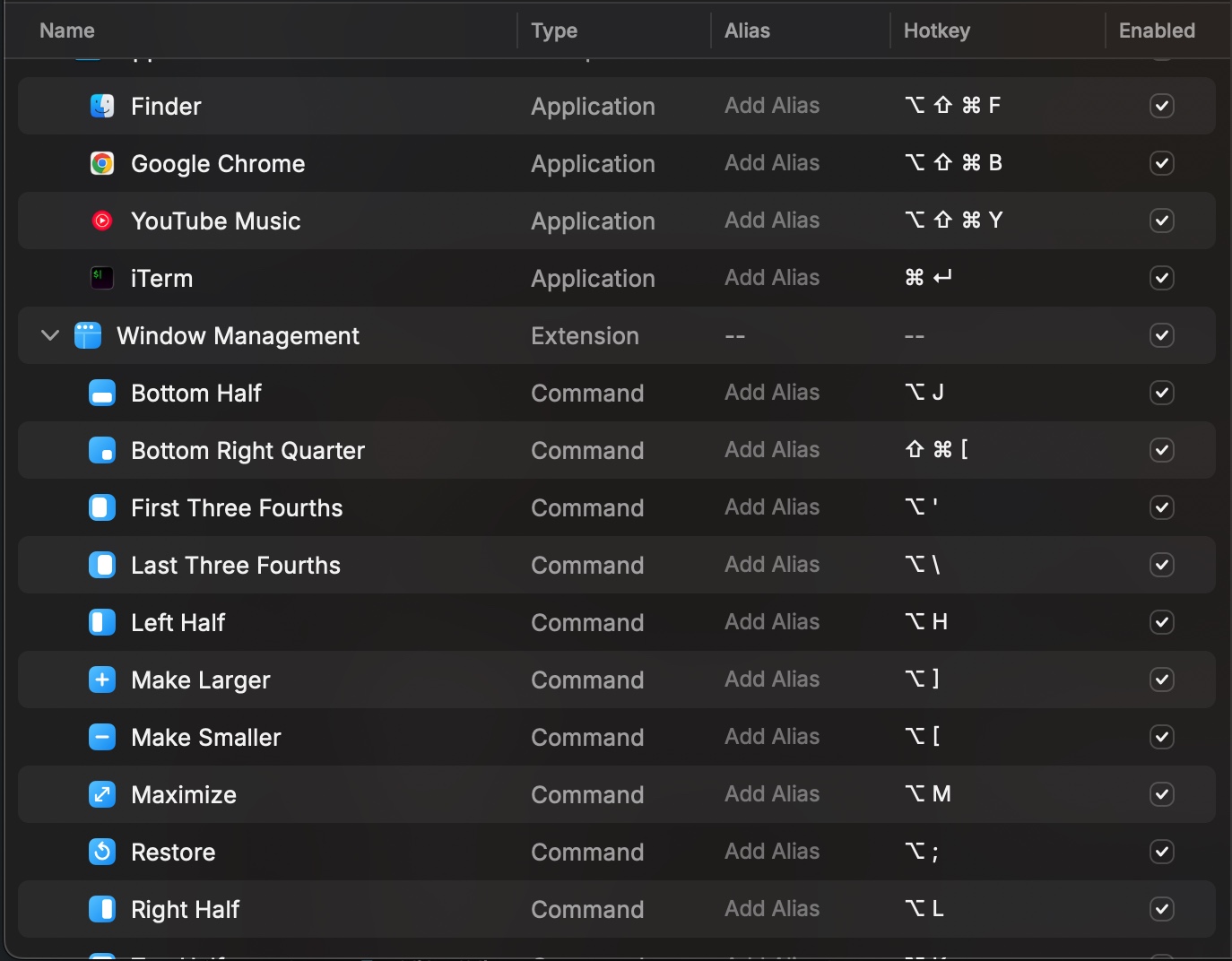
brew install --cask raycastRaycast makes my life so much easier. I use it to launch apps, manage Homebrew packages, and as my window manager.
iTerm2 + Oh My Zsh + Powerlevel10k#
iTerm2 is my terminal of choice. This time I went with Anonymous Pro as my font.
I pair it with Oh My Zsh and Powerlevel10k. Although its development stopped in 2024 and many people are migrating to Starship which I’ve already been using on Linux.
Tmux#
Tmux to force me to use the CLI as my main development workspace.
Git and Lazygit#
Git and Lazygit for version control.
LazyVim#
LazyVim as my main text editor. I’m very far from using it to its full potential, but I’ll get there if I stick with it!
Karabiner-Elements#
I use Karabiner-Elements to manage my key mappings for external keyboards, mapping Caps Lock to Escape so one does not injure his left hand, and configure home row mods.
Obsidian#
Obsidian as my second brain and knowledge management system.
GNU Stow#
GNU Stow so I don’t go crazy managing my dotfiles.
Hidden Bar#
To keep the menu bar nice and clean.
Go + Hugo + Blowfish#
Install Go, Hugo and Blowfish so I can start blogging again.
Shottr#
Shottr is my go to for taking and annotating screenshots.
Wallpaper#
Perhaps the most crucial step of the whole process is setting your favorite wallpaper and installing your music player platform. Et voilà! We are off to the races!